Orders
Understand the full order workflow
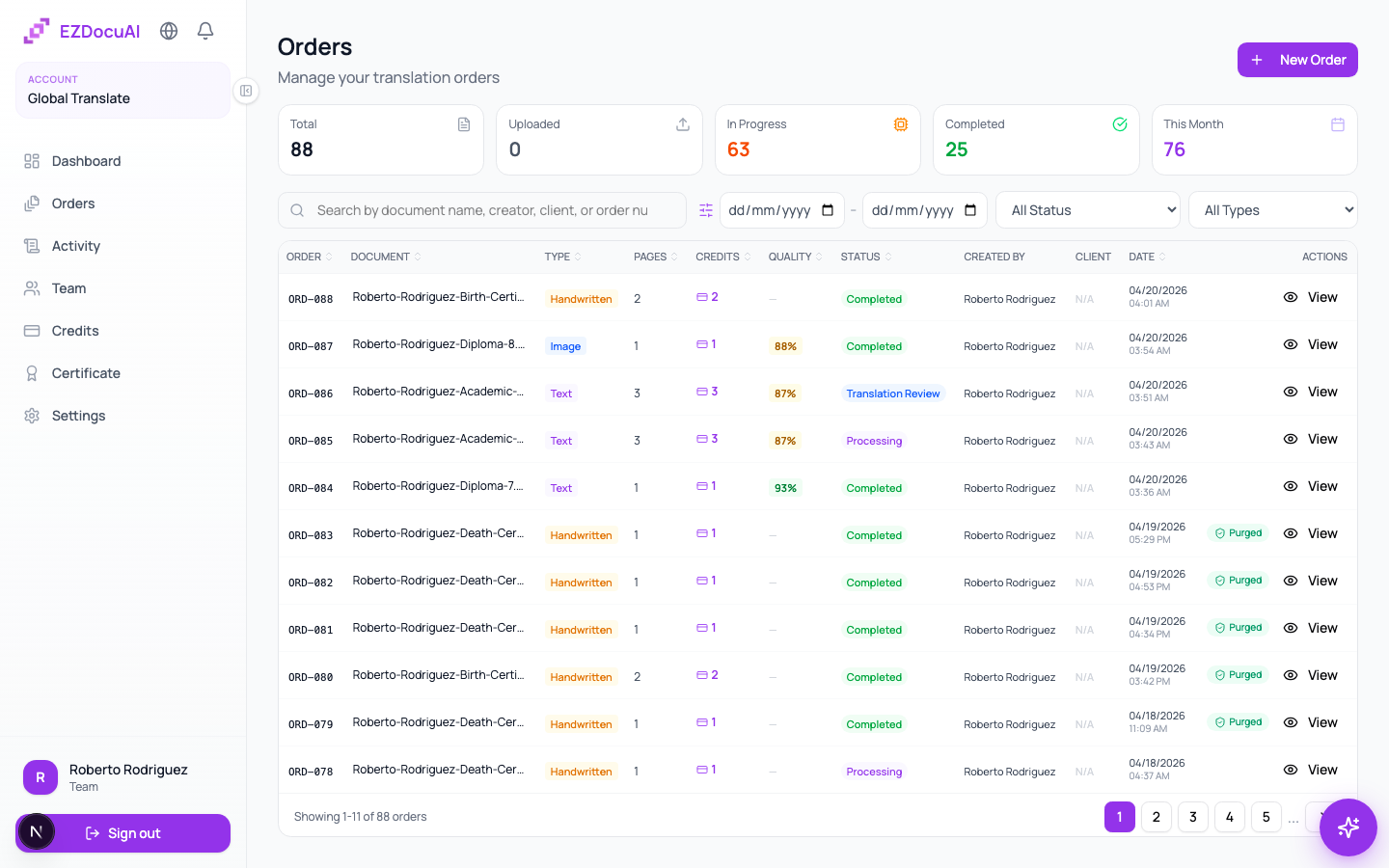
From the moment you upload a document to the moment you export the certified PDF, every order moves through four clearly labeled states. Knowing where it is helps you anticipate what's next and what input the platform needs from you. You drive the workflow — EZDocuAI automates the heavy lifting (OCR, draft translation, layout preservation), but every approval and the final certification are yours.
The 4 states
| State | Icon | What it means |
|---|---|---|
Uploaded | 📥 | File received, queued for processing. |
Processing | ⚙️ | Extracting text and running OCR if needed. |
OCR Review | 🔍 | OCR found low-confidence zones. Your review is required before translation. |
Translation Review | ✍️ | AI draft ready. You review, edit, and approve before export. |
Completed | ✅ | Exported with your certificate template applied. |
What to do in each state
1. Uploaded → Processing
Nothing to do. The system starts automatically within seconds. You get an in-app notification (and an email if you have it enabled) when it advances to the next stage.
2. Processing → OCR Review (if applicable)
If the document was already text-searchable (digital PDF, DOCX), the order skips this step and goes straight to Translation Review. If it was an image or scan, OCR runs automatically and the order moves on once it's done.
3. OCR Review → Correct the recognized text
When you see OCR Review, open the order and click Review OCR. A split-screen editor opens: original image on the left, extracted text on the right. Correct any errors before they propagate into the translation, especially in:
- Proper names and surnames.
- Numbers, dates, ID and passport numbers.
- Stamps and signatures transcribed as text.
- Words with accents or special characters.
⚠️ Important: approving without reviewing is the single most common cause of bad translations downstream. Take the time to validate carefully — your professional certification will be attached to whatever passes through here.
When done, click Approve & continue.
4. Translation Review → Edit and approve
The AI generates a draft translation segment by segment. Open the order and click Review translation to see source and target side by side. This is where you do your work as a translator — read every segment, fix terminology, adjust register, apply your client's preferences, and verify accuracy.
You can:
- Edit any segment inline. Your edits flow into the final PDF and feed back into your glossary / translation memory if you have one configured.
- Apply your glossary to enforce term-by-term consistency (e.g. how you always render a specific institution name or legal phrase).
- Approve & export with the green button when you're satisfied. The final PDF generates in seconds with your certificate template attached.
If you work in a team, you can also route the order to a colleague's queue for a second pair of eyes before you export — see Team, invitations and permissions.
5. Completed → Export and deliver
Your order shows three actions:
- Download PDF — the translated document with original layout preserved, your certificate page bundled, and the SHA-256 integrity hash embedded.
- Download certificate — the certificate page on its own (in case the receiving authority asks for it as a separate file).
- Copy sharing link — public URL valid for 7 days that your client can use to download the file without signing up.
Cancel an order in progress
Open the order and look for the Cancel order button (only visible before you export). Refund rules:
Uploaded/Processing/OCR Review→ 100% automatic refund of credits.Translation Review(the AI already drafted, regardless of whether you've started editing) → no refund — the work was done.Completed→ can't be canceled (already exported under your certification).