Orders
Trash and Archived: delete, restore and archive orders
When you delete an order in EZDocuAI it doesn't vanish right away: it goes to the Trash, and you can get it back from there for 7 days. If you just want it out of sight without deleting it, use Archive instead. Here's where each one lives, what each button does, and what happens to your credits, your certificates and your files.
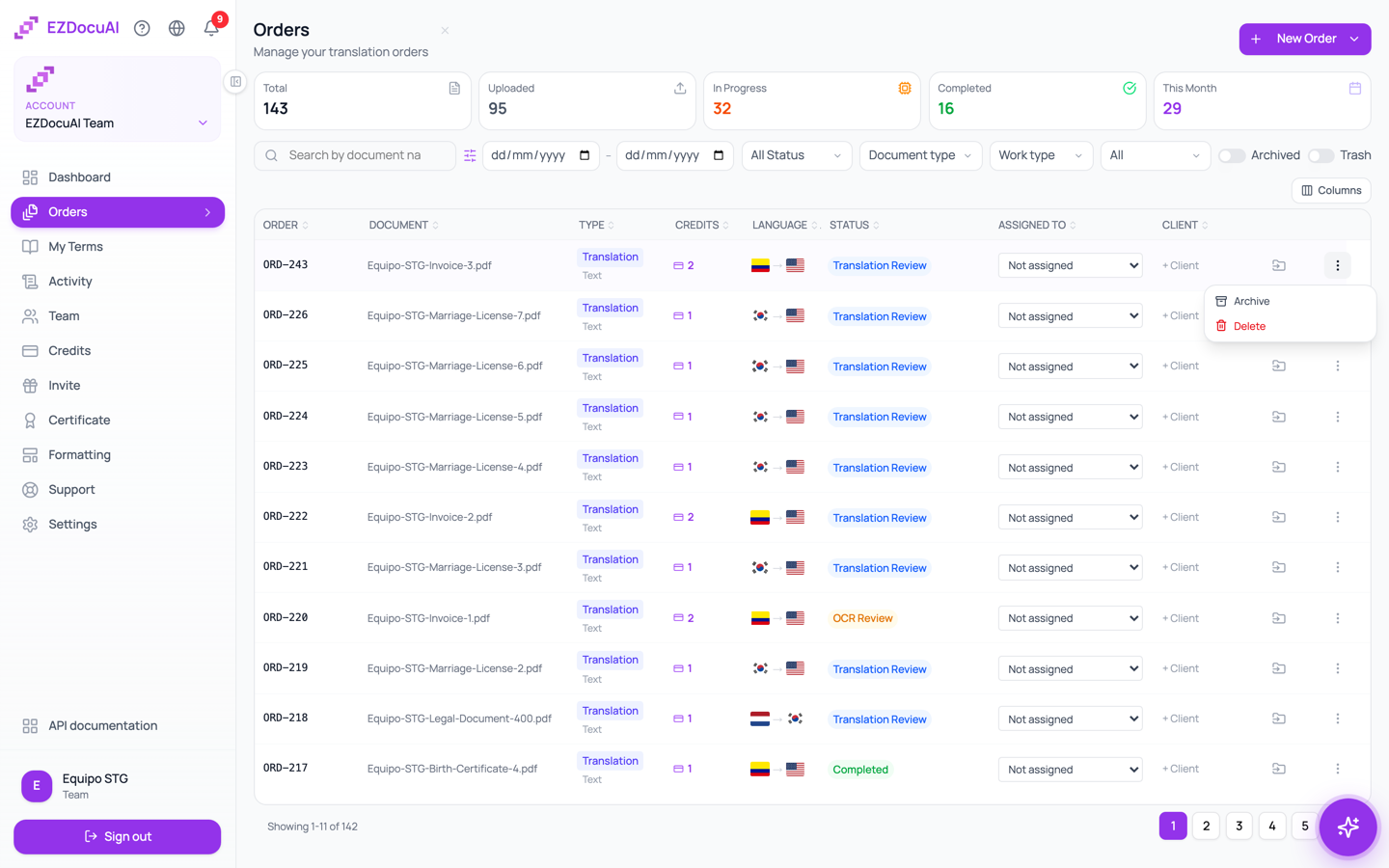
Where to find them
Go to Orders (sidebar). Above the table, next to the filters, you'll see two toggles:
| Toggle | What it shows |
|---|---|
| Archived | The orders and projects you archived |
| Trash | The orders you deleted in the last 7 days |
Only one can be on at a time. Turn it off to go back to the normal list. The Trash toggle only appears if you have permission to delete documents (see who has it below).
Move an order to the trash
- In Orders, open the ⋮ menu at the end of the row.
- Click Delete.
- Confirm with Move to trash.
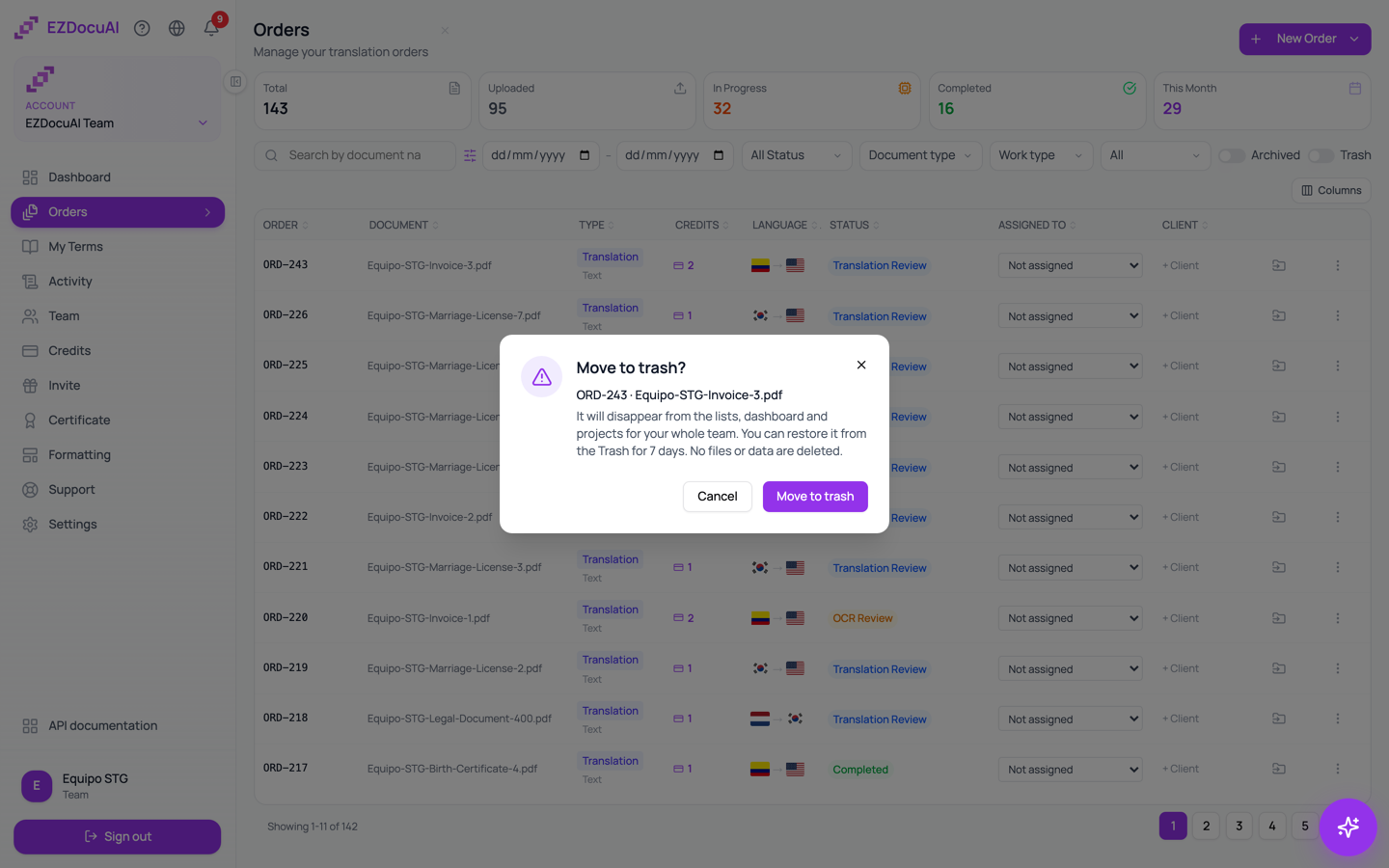
The order disappears from the lists, the dashboard and projects for your whole team. No files or data are deleted.
You can move an order to the trash in any status, including one that's still processing. If the work finishes while it's in the trash, the order doesn't change status and isn't charged; when you restore it, you pick up where it left off.
Restore an order
- In Orders, turn on Trash.
- Open the order's ⋮ menu and click Restore.
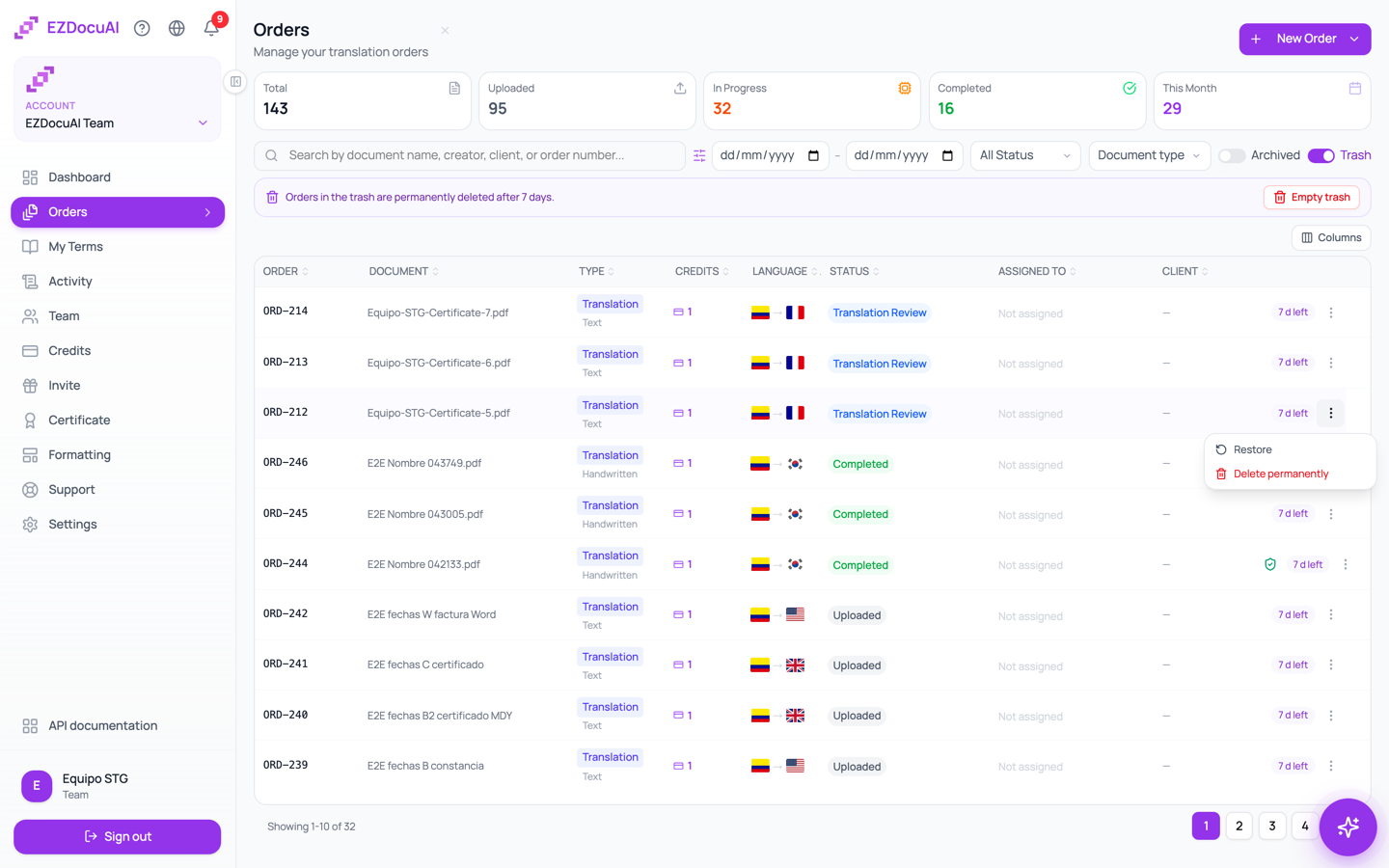
The order comes back exactly as it was: same status, same step, same number. If it was archived when you deleted it, it goes back to Archived.
You can also open the order from the trash: at the top you'll see the notice “This order is in the trash” with the date it will be deleted, and a Restore order button.
Each order in the trash shows how many days it has left (for example, “5 d left”).
Delete permanently and Empty trash
| Action | Where | What it does |
|---|---|---|
| Delete permanently | An order's ⋮ menu, in the trash | Removes that order from the trash too |
| Empty trash | Button at the top of the Trash view | Does the same for every order in the trash you can see |
| Automatic emptying | Done by the platform | After 7 days in the trash, the order is permanently deleted on its own |
Important: “Delete permanently” can't be undone. The order is no longer available to anyone on your team and you can't restore it from the platform. If in doubt, leave it in the trash: you have 7 days.
What “permanently” means
For you and your team, the order no longer exists: it doesn't show up in any list, not even in the trash, and its page won't open. Deleting an order does not erase its files at that moment: the original and the delivered file stay stored and encrypted, as before, until your account's data retention removes them (explained below).
If you want an order's files actually erased, do it before moving it to the trash: open the order and click Delete Data. The document you uploaded and the one that was delivered are erased, and you get a deletion certificate as proof. This can't be undone either.
How long your files are kept
| Situation | What happens to the files |
|---|---|
| No retention set (how accounts start) | They're not deleted automatically: they're kept encrypted for as long as your account exists |
| Retention set | They're deleted automatically the period you chose after the order is completed. Orders that are never completed aren't deleted automatically |
| Delete Data on an order's page | They're erased right then |
| Files in a project's Preparation that never became an order | Deleted 7 days after upload, or after the account's retention period if you set one |
The account owner sets retention in Settings → Privacy & Data Retention: immediate, or 1, 3, 7, 10, 14, 30, 60 or 90 days after the order is completed. It can't be changed on the free plan, and on paid plans the maximum period depends on the plan. On paid plans you can also choose a period for a specific order when you create it (Auto-delete files after). Every deletion produces a signed deletion certificate.
Moving an order to the trash, deleting it permanently or archiving it doesn't change these periods.
Who can do it
| Action | Who |
|---|---|
| See the trash, Delete, Restore, Delete permanently, Empty trash and Delete Data | The account owner, always, and team members with the Delete documents permission |
| Archive and unarchive | Anyone who can see the order; no special permission needed |
- The Manager role comes with Delete documents turned on; Reviewer and Member come with it off. The owner can change it per person in Team.
- The trash belongs to the whole account: what one person deletes shows up in the trash for everyone else who has the permission.
- A member who only sees their own orders and the ones assigned to them also sees and empties only those in the trash.
- With read-only access you won't see these actions: a lock appears instead.
What happens to your credits, the certificate and the ORD number
- Credits: deleting an order doesn't refund credits, and your credit history doesn't change. An order that was processing and finishes in the trash isn't charged; if you restore it and resume it, it's charged once, like any order.
- Certificate: certificates and verification links for what you already delivered keep working even if the order is in the trash or deleted.
- ORD number: the order keeps its number (
ORD-…). When restored, it comes back with the same one, and that number is never reused for a new order.
Trash or Archive
| Archive | Trash | |
|---|---|---|
| What it's for | Getting things you no longer use out of sight | Getting rid of an order |
| Deleted automatically? | No, it stays in Archived as long as you want | Yes, after 7 days |
| Does work continue? | Yes, an archived order keeps processing and completes | No: it doesn't change status and can't be continued until you restore it |
| Counts in your stats? | Yes | No |
| Permission | None in particular | Delete documents |
| Orders in a project | Not archived on their own: you archive the whole project | Yes, they can go to the trash |
| To undo | Unarchive | Restore (for 7 days) |
Neither one erases files.
FAQ
Where is the trash? In Orders, turn on the Trash toggle above the table. If you don't see it, you don't have the Delete documents permission: ask the account owner.
I deleted an order by mistake. Can I get it back? Yes, for 7 days: turn on Trash, open the order's ⋮ menu and click Restore. If it has already been deleted permanently (by hand, by emptying the trash or after the 7 days), it can't be restored from the platform.
Does deleting an order erase my files? Not at that moment. Files follow your account's data retention. To erase them now, use Delete Data on the order before deleting it.
Do I get my credits back if I delete an order? No. Deleting or archiving doesn't change credits already charged.
How many days do I have to restore it? 7 days from when you moved it to the trash. Each order in the trash shows how many are left.
Related
- Understand the order workflow
- Team, invitations and permissions
- Certificate templates and integrity hash
- Frequently asked questions
Last updated: October 16, 2026.